Overview
AWX can run on Docker, but only for development and testing — not production. The official AWX project supports Docker Compose as a development-only deployment method.
Ansible AWX is a powerful open source, freely available project that enables organizations to test and use Ansible AWX in a lab, development, or other POC environment.
Install Ansible AWX using Docker Compose
Before starting, you will need to install some required dependency including, Node.js, NPM, Ansible and other on your server.
Firstly install Node.js and NPM using the following command:
sudo apt install nodejs npm -y
Node.js is a runtime environment that allows you to run JavaScript code on your computer or a server, rather than just inside a web browser.
Check version : node -v
npm (Node Package Manager) is a tool used to install, share, and manage extra code libraries (called "packages") that you can use in your Node.js projects.
Check version: npm -v
Next, install Python dependency with the following command:
sudo apt install python3-pip git pwgen -y
Following step is to install the Ansible package by running the following command:
Once Ansible is installed, verify the Ansible version using the following command:
Install Docker and Docker Compose
First of all install required dependencies using the following command:
Next, install a few prerequisite packages which let apt use packages over HTTPS:
curl -fsSL https://download.docker.com/linux/ubuntu/gpg | sudo gpg --dearmor -o /etc/apt/keyrings/docker.gpg
sudo chmod a+r /etc/apt/keyrings/docker.gpg
sudo apt update -y
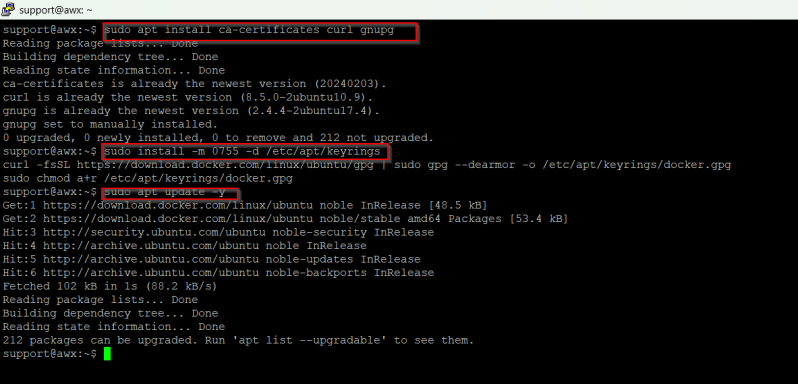
After that install the Docker CE and Docker Compose using the following command:
sudo apt install docker-ce -y
docker --version
You will get the following output:
Docker version 29.4.3, build 055a478
docker-compose --version
You should see the following output:
docker-compose version 1.29.2, build unknown

Download Ansible AWX
download the Ansible AWX from the Git Hub repository using the wget command:
wget https://github.com/ansible/awx/archive/17.1.0.zip
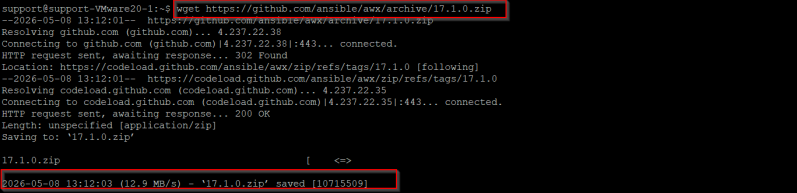
Once the AWX is downloaded, unzip the downloaded file with the following command:
Please navigate to the AWX directory and generate the secret key using the following command:
You should see the generated key in the following output:
Install Ansible AWX
Before starting, you will need to edit the Ansible inventory file and define your admin username, password and secret key:
Change the following lines:
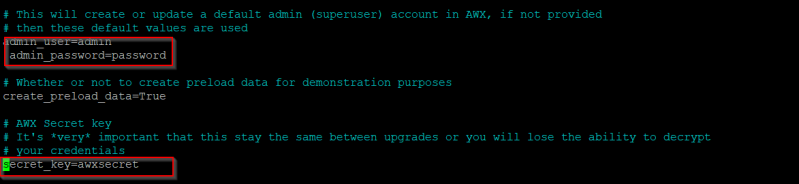
Save and close the file when you are finished then install the Ansible AWX using the following command:
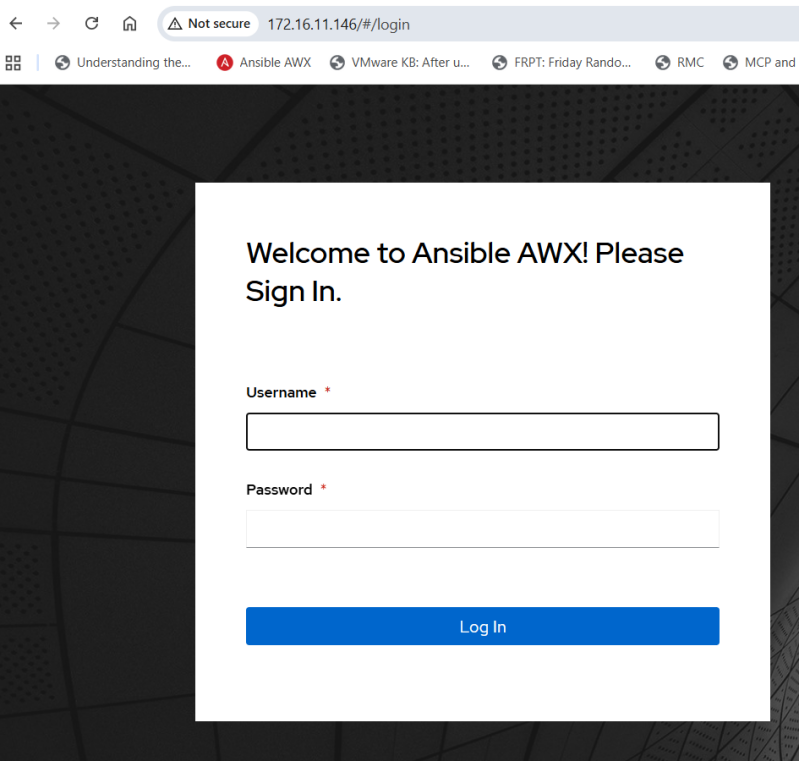
Access Ansible AWX
Setup SSH Key-based Authentication
Ansible uses SSH to connect to each remote server and execute tasks. So you will need to set up an SSH key-based authentication between Ansible control node and manage nodes.
On the Ansible controller node, generate an SSH key pair using the following command:
Provide empty passphrase and hit Enter. You should see the following output:
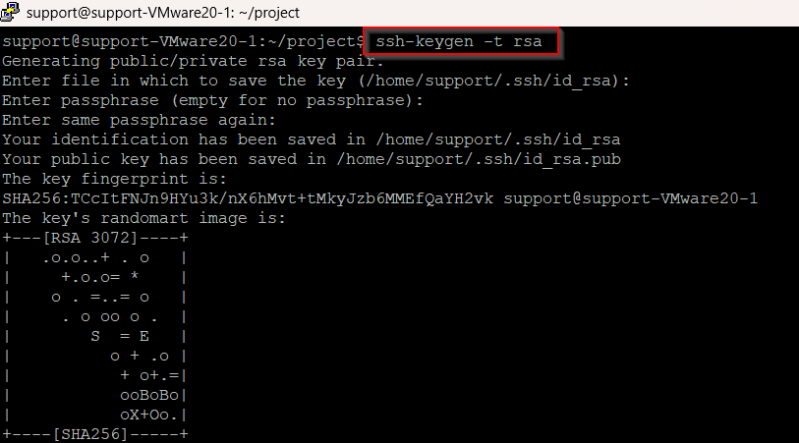
You can verify the generated SSH key using the following command:

Next, you will need to copy the public key to both remote hosts:
ssh-copy-id root@172.16.11.146

Next, verify whether you can connect to remote hosts without providing an SSH password:
ssh support@172.16.11.146
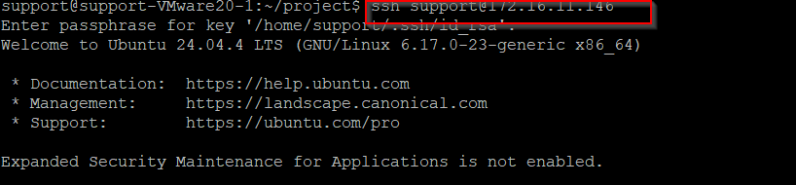
If everything is fine, you can log in to remote hosts without providing an SSH password.
Create an Ansible Inventory File
By default, Ansible default configuration file and inventory file is located at /etc/ansible/ansible.cfg and /etc/ansible/hosts respectively. In this section, we will create both files inside /root/project directory. I am using /support/project.
- ansible.cfg is a configuration file to tell how ansible should be running.
- inventory is a file that stores all configuration information of remote host.
First, create a project directory and ansible.cfg file using the following command:
mkdir project
Add the following lines:
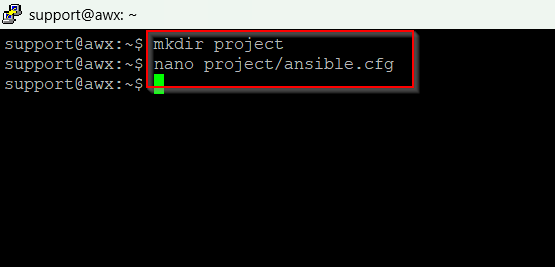
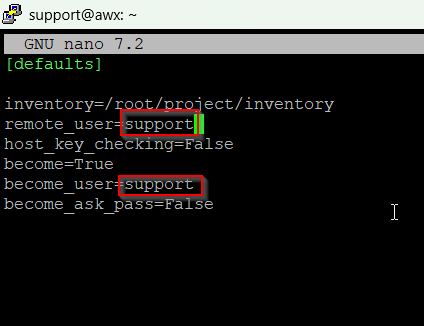
Save and close the file then create an inventory file:
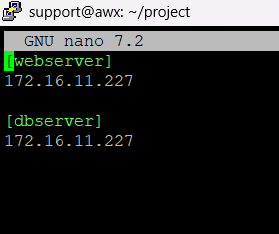
nano project/inventory
Add your Ansible hosts IP address as shown below:
[webserver]
172.16.11.227
[dbserver]
172.16.11.227
Save and close the file then export the Ansible new configuration path with the following command:
Now, change the directory to project and verify the Ansible new configuration path using the following command:

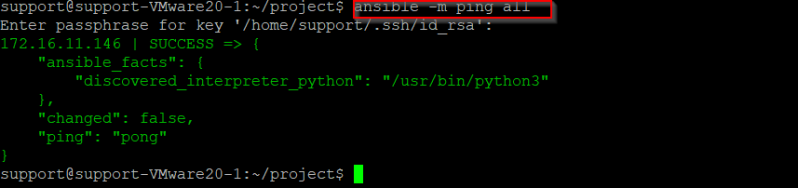
Use Ansible’s built-in ping module to run a connectivity test on all remote hosts which you have defined in your inventory file:
Verify Uptime of Ansible Hosts
ansible -m shell -a "uptime" all
