Information
Docker on Ubuntu is the use of the Docker open-source platform to create, deploy, and manage containerized applications on an Ubuntu Linux operating system. It allows developers to package applications with all dependencies into lightweight, isolated containers, ensuring consistent software performance across different environments
Installing Docker in Ubuntu
First, update your existing list of packages:
sudo apt update
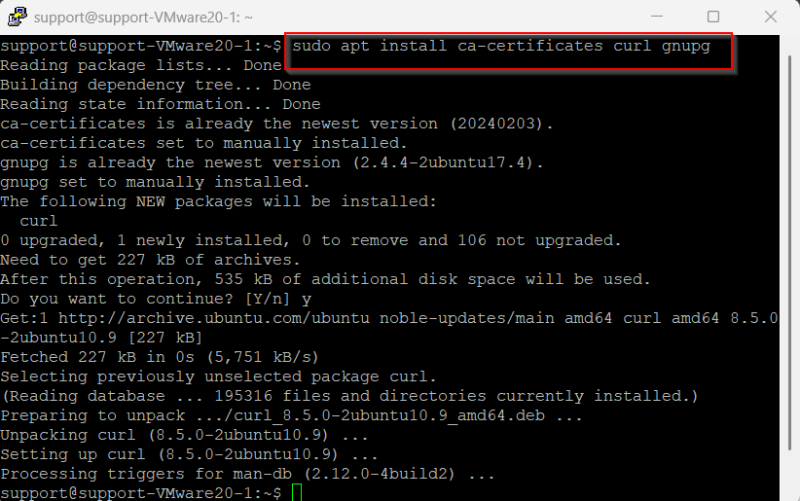
Install a few prerequisite packages which let apt use packages over HTTPS:
sudo apt install ca-certificates curl gnupg
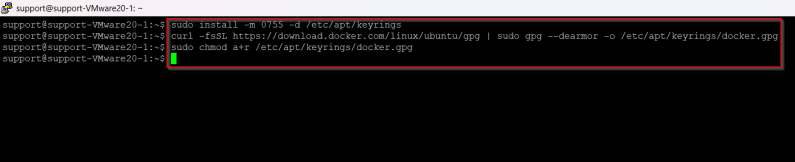
Add the GPG key for the official Docker repository to your system using the modern keyring method:
sudo install -m 0755 -d /etc/apt/keyrings
curl -fsSL https://download.docker.com/linux/ubuntu/gpg | sudo gpg --dearmor -o /etc/apt/keyrings/docker.gpg
sudo chmod a+r /etc/apt/keyrings/docker.gpg
Add the Docker repository to APT sources. This command automatically detects your Ubuntu version:
echo \ "deb [arch=$(dpkg --print-architecture) signed-by=/etc/apt/keyrings/docker.gpg] https://download.docker.com/linux/ubuntu \ $(. /etc/os-release && echo "$VERSION_CODENAME") stable" | \ sudo tee /etc/apt/sources.list.d/docker.list > /dev/null

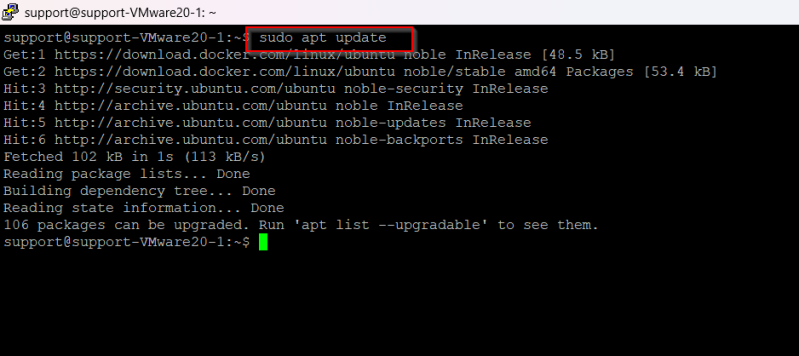
Update the package database with the Docker packages from the newly added repo:
sudo apt update
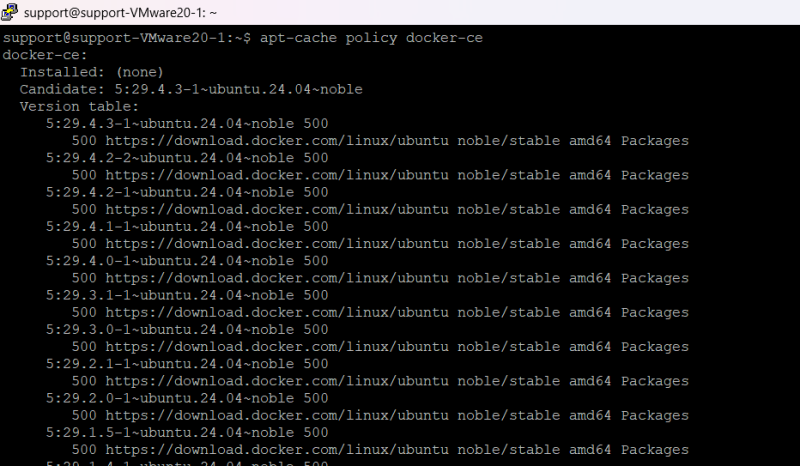
Verify that you are about to install from the Docker repository instead of the default Ubuntu repository:
apt-cache policy docker-ce
Finally, install Docker:
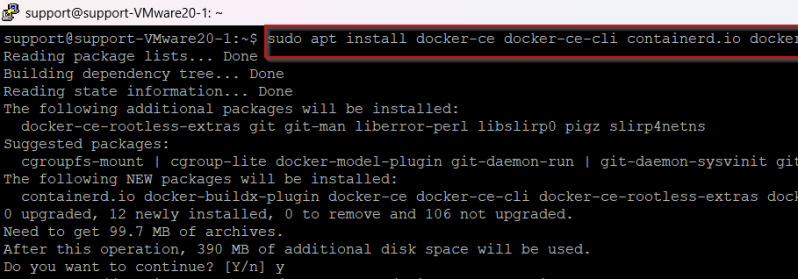
sudo apt install docker-ce docker-ce-cli containerd.io docker-buildx-plugin docker-compose-plugin
Note: The installation includes docker-buildx-plugin and docker-compose-plugin which provide modern Docker Compose functionality. You can use docker compose (without the hyphen) instead of the older standalone docker-compose command.
Docker should now be installed, the daemon started, and the process enabled to start on boot. Check that it’s running:
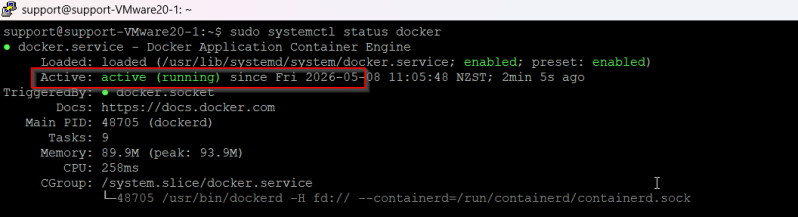
sudo systemctl status docker
The output should be similar to the following, showing that the service is active and running:
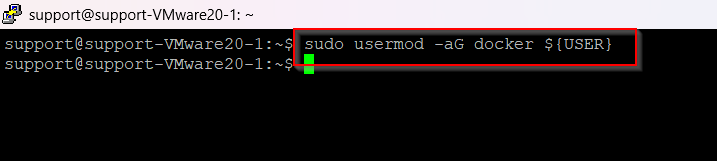
If you want to avoid typing sudo whenever you run the docker command, add your username to the docker group:
sudo usermod -aG docker ${USER}
To apply the new group membership, log out of the server and back in, or type the following:
su - ${USER}
You will be prompted to enter your user’s password to continue.
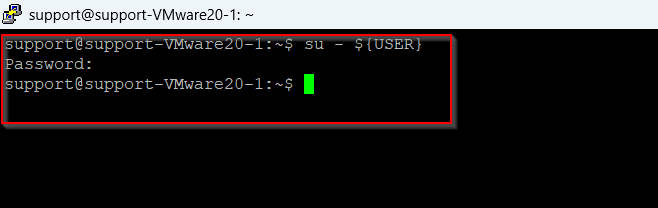
Confirm that your user is now added to the docker group by typing:
groups
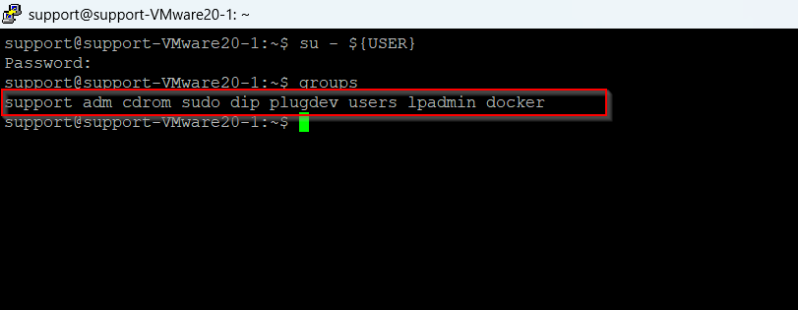
If you need to add a user to the docker group that you’re not logged in as, declare that username explicitly using:
sudo usermod -aG docker username
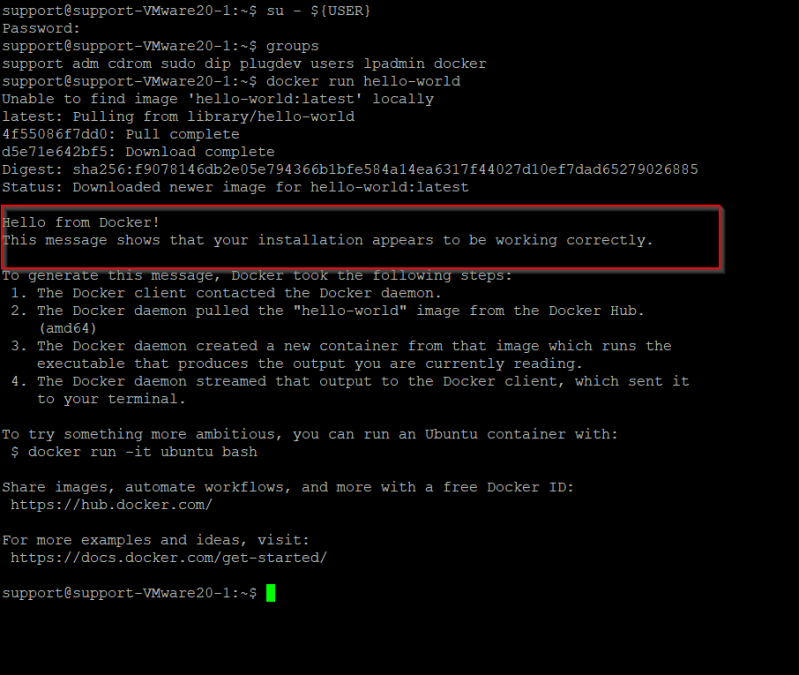
To check whether you can access and download images from Docker Hub, type:
docker run hello-world